Profile
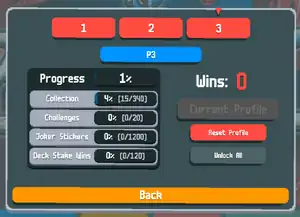
Balatro has a profile system that allows for a player to play the game across multiple save files (or profiles). By default, all players start with a single profile, though they can create up to two other profiles if they wish to do so.
Each profile features a varying amount of progress, between items collected, decks/stakes won, and overall stats. However, settings and deck customization apply across all profiles.
The current profile can be accessed by pressing the gray "Profile" button on the bottom left corner of the screen, where the current profile's name is also indicated. Players can navigate towards other profiles by pressing either the tabs "1", "2", or "3".
Features
The following is a list of features that are indicated in a specific profile:
Profile name

The profile name, indicated just below the top profile tabs, is a blue button that features the name of the profile. The name can be up to 16 characters, and it can even be empty.[1] It can contain alphanumeric characters and some, but not all, symbols. Some of the symbols that cannot be typed in a name include, but are not limited to: `, @, #, %, ^, *, ), [, {, }, ], ;, ', ", \, |, `, >, and /. Furthermore, for PC users, putting Caps Lock on for non-alphabetical keys can work the same way holding Shift and then pressing a non-alphabetical key works (for example, putting Caps Lock on, then pressing 1 yields !). Players cannot paste text from their clipboard for their name.
It should be noted that the name can only be changed through the current profile or added through an empty profile. It cannot be changed through an unloaded profile, as the name field will be indicated in black. The player has to load that profile first to be able to change it.
Default naming scheme
When the player creates a new profile, if no name was chosen, the default name that would be chosen is PX, with X being the number of the profile. For example, if the player presses "Create Profile" in the profile tab "2", the default name will be P2.
Progress
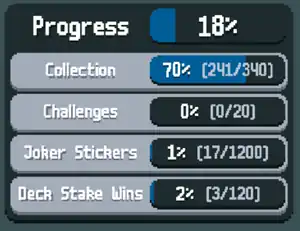
In a non-empty profile, there is a "Progress" box that is shown (which can also be found through the Stats menu. The first "Progress" bar indicates the total game progress of a player through that specific profile.
The other Progress stats are:
- Collection: How many, out of the 340 items, are obtained in the Collection.
- Challenges: How many, out of the 20 challenges, were completed by the player.
- Joker Stickers: How many Stake Stickers each Joker has.
- Deck Stake Wins: How many times the player won on each Stake for each Deck.
It should be noted that the percentage of the main Progress bar is calculated through the percentages of the four progress stats mentioned above divided by four. For example, if a profile's Collection percentage is 95%, Challenges percentage is 10%, Joker Strikers percentage is 4%, and Deck Stake Wins percentage is 11%, the Progress percentage would be 30%.
In an empty profile, the "Progress" box will be indicated simply as a large, black box that says "EMPTY".
Right panel
In a non-empty profile, there is the total number of wins that the player obtained.
However, on all profiles, there are some action buttons.
In the current profile, the following buttons are listed:
- Current Profile (grayed out)
- Reset Profile
- Unlock All
In an unloaded profile, the following buttons are listed:
In an empty profile, the following buttons are listed:
- Create Profile
- Delete Profile (grayed out)
Loading another profile
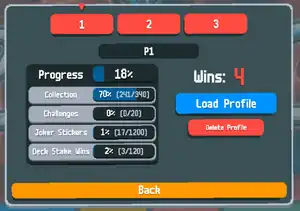
Assuming the player has at least two profiles (a current profile, be it named P1, and an unloaded/non-empty one named P2), to load another profile, the player has to first open the Profile menu from the Main Menu, where it will always lead to the current profile (P1 in this example), then click on the "2" tab to open up the info on the unloaded profile. There, the player can click the big blue "Load Profile" button, where it will then lead back to the Main Menu, but with the second profile.
Creating a profile
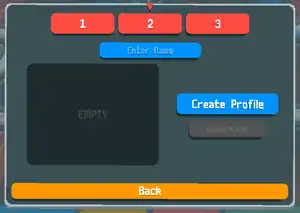
To create a profile, the player simply has to go to a tab where there is an empty profile. An empty profile is notably indicated by a large "Create Profile" button, a grayed-out "Delete Profile" button, and an empty progress box. There, the player can optionally choose a name (or otherwise let the game provide the name for them, through the default naming scheme) and then hit "Create Profile".
Once they do so, that profile will be created and then become the currently loaded profile.
It should be noted that in every new profile, even though the overall Progress tab and Collection tab indicate 0% in the Progress panel, the number of items in the Collection in a new profile is 2, not 0. This is because every new profile has the 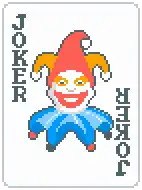 Joker and the
 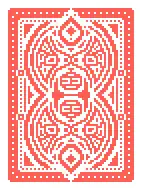 Red Deck discovered (all enhanced cards and seals are discovered as well, but are not counted.)
Deleting a profile
There are two ways a player can delete a profile: resetting their current profile and deleting an unloaded profile. Functionally, they're the same, but with slight differences as to where they come from and how exactly they operate.
Resetting profile
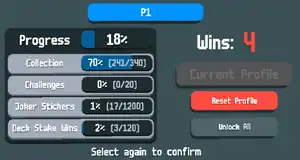
In the currently loaded profile, the button for deleting a profile is called "Reset Profile". When the player clicks on it once, the game will ask for them to select the button again to confirm their choice. Clicking on it for the second time will reload the game and reset all progress for that profile, including items collected, challenges completed, wins, and more. Furthermore, if the player has a custom name, it will be reset to the default naming scheme.
Deleting profile
For unloaded profiles, the button for deleting a profile is called "Delete Profile". When the player clicks on it once, the game will ask for them to select the button again to confirm their choice. Clicking on it will wipe all progress from that profile and render it empty instead of just having the progress emptied out and the name changed. If the player wants to, they can create the profile again and start from scratch.
Unlocking all items
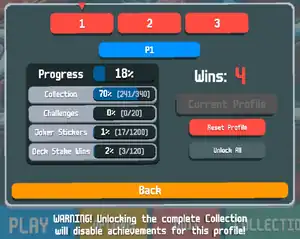
One additional option that can be done through the profile system is by clicking the dark gray "Unlock All" button, which allows for the player to unlock all 340 items in the Collection. Clicking it once will indicate a message of permanently disabling achievements in the profile, and clicking it for the second time will unlock all of the items, remove the "Unlock All" button, and put an "Achievements Disabled" message in its place.
When all of the items are unlocked, specifically through a completely new profile, the Progress bar will go up to 25%, due to the Collection stat becoming 100%.
Notes
- ↑ It should be noted that if a profile's name is empty, it will be changed back to the default naming scheme if the player loads a different profile and then loads the no-name profile again.