Settings
Settings is the first option that can be found within the Options menu. There, the player can modify many settings for Balatro, including ones that have to do with graphics, video, and audio.
The following is a list of settings and their configurations. It should be noted that the settings will apply across all profiles.
Game settings
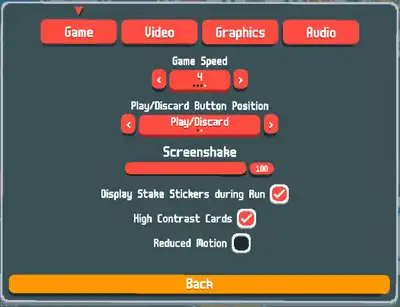
| Setting | Options | Default option | Details |
|---|---|---|---|
| Game Speed | 0.5, 1, 2, 4 | 1 | Affects the speed of card animations (e.g. when playing cards are scored, when jokers are triggered, when tarot cards are used, etc.) |
| Play/Discard Button Position | Play/Discard, Discard/Play | Play/Discard | Determines the positions of the "Play Hand" and the "Discard" buttons during a round. |
| Screenshake | 0% → 100% | Desktop: 30%
Mobile: 50% |
Determines how much the screen shakes during certain events, such as when the cursor is significantly moving, when playing cards are scored, or when jokers are triggered. |
| Display Stake Stickers during Run | On, Off | Off | Determines whether to showcase the highest stake that the player used a specific Joker for or not. For more info on how Stake Stickers work, see Stickers#Stake Stickers. |
| High Contrast Cards | On, Off | Off | Determines whether playing cards should show up with a high contrast or not. By selecting this option, the following changes will occur:
The player can also change this setting in the "Customize Deck" interface. |
| Reduced Motion | On, Off | Off | By selecting this option, it will disable the idle and triggering animations of cards, the background animation, and the animation of text. Furthermore, it will disable screenshake, regardless of what it is set to. |
Video settings
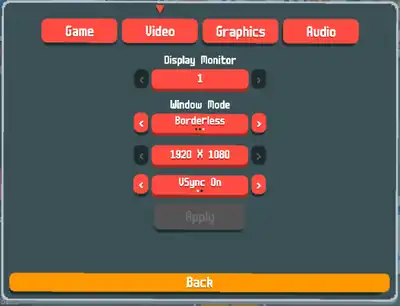
| Setting | Options | Default option | Details |
|---|---|---|---|
| Display Monitor | Number of monitors | 1 | Determines the monitor for the game to be displayed. |
| Window Mode | Windowed, Fullscreen, Borderless | Borderless | Determines the type of window Balatro will have.
|
| Resolution | Varies | Varies | Determines the quality of the display of the game's window. Supports ultra-widescreen and 4K+ resolutions. |
| VSync | VSync On, VSync Off | VSync On | Determines whether to enable Vertical Synchronization (VSync). If VSync is off, Balatro attempts to cap FPS to 500. |
To update any of these settings, the player must select their desired video settings, then press "Apply". Doing so will restart the game with the chosen settings.
These settings are not available on mobile version.
Graphics settings
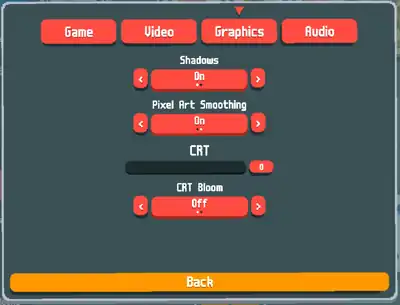
| Setting | Options | Default option | Details |
|---|---|---|---|
| Shadows | On, Off | On | Determines whether UI buttons and cards have shadows beneath them or not. |
| Pixel Art Smoothing | Off, On | Off | Determines whether anti-aliasing is applied or not. |
| CRT | 0% → 100% | Desktop: 70%
Mobile: 30% |
Determines whether a CRT-style monitor display (shadow mask, scanlines and image distortion) is applied or not. |
| CRT Bloom | Off, On | On | Determines whether a CRT-style blooming is applied or not; not available on mobile version. This setting does not do anything if CRT is 0%. |
Audio settings
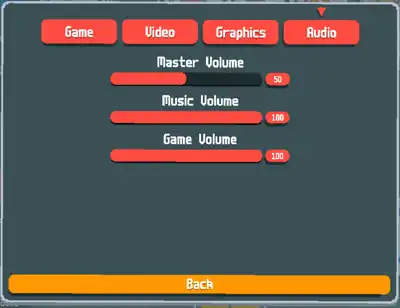
| Setting | Options | Default option | Details |
|---|---|---|---|
| Master Volume | 0% → 100% | 80% | Affects Music Volume and Game Volume. |
| Music Volume | 0% → 100% | 100% | Affects the volume of the game's background music. |
| Game Volume | 0% → 100% | 100% | Affects the volume of the game's sound effects. |