Einleitung
This Guide shows the how to remove and replace the WiFi Card of this device.


-
-
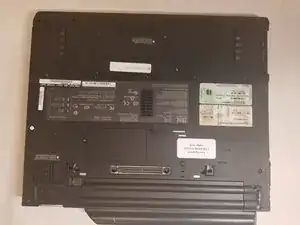
Start with the laptop with the side with the logo facing down.
-
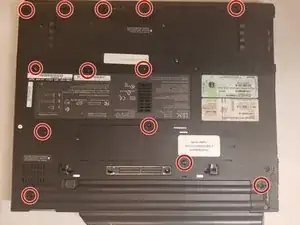
Next you will have to remove all the screws in the red circles
-
-
-
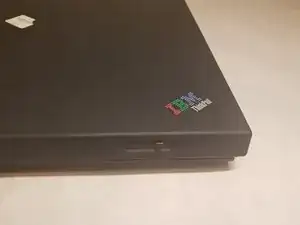
Flip the laptop so that the logo is now facing up
-
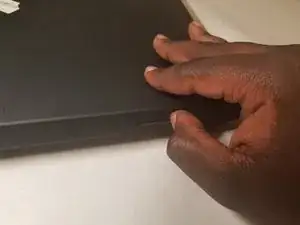
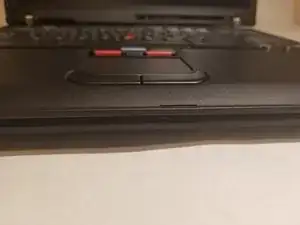
locate the lock switch on the front right
-
Slide the switch to the right to unlock the laptop
-
-
-
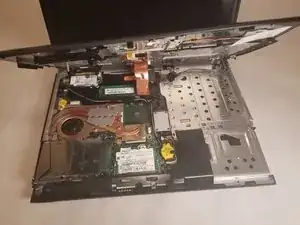
Lift open the laptop
-
The keyboard should be detached from the bottom part of the laptop
-
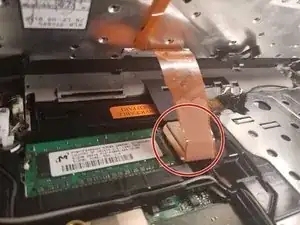
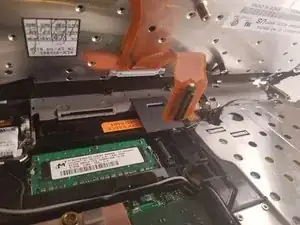
Hold the edges of the keyboard and slowly pull up until it opens
-
-
-
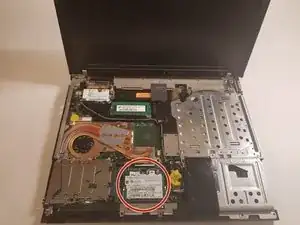
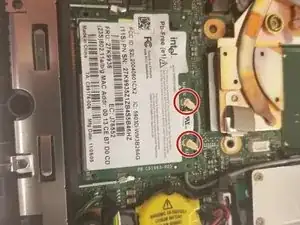
Locate the two wires connected at the top of the WiFi-Card
-
Hold the card down and use the tweezers to pinch the plug and pull up.
-
-
-
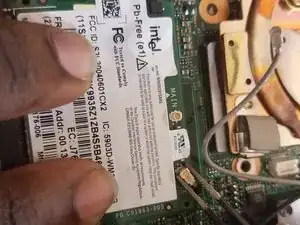
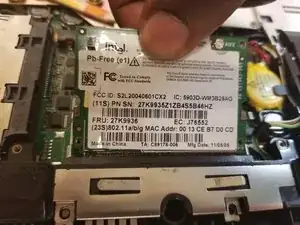
Place fingers on the two clips holding the card in place
-
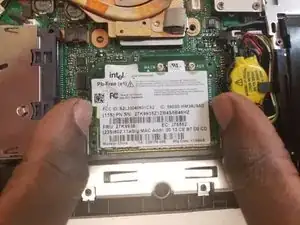
Pull the clips outwards until the the card pops up
-
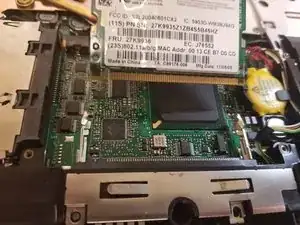
Pull the card out by pulling out away from your body
-
To replace, follow these steps in reverse order
-
To reassemble your device, follow these instructions in reverse order.

There are two more screws that have to be removed before the keyboard can be removed. The first one is in the top right corner of the picture above, and the second is along the right hand edge of the base, 85 millimetres down from the first screw.
Colin Hart -