Einleitung

Removal of the Wi-Fi Card.

  1. nOVTwh1ZZiXj2xdv
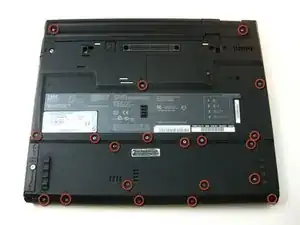
    • Unscrew the 20 Phillips screws on the underside of the T42.

    • For ease of reassembly, keep your screws organized.

  2. XSANOcwcEWryUkJN
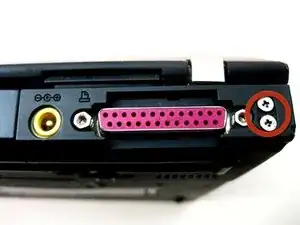
    • Unscrew the 2 Phillips screws on both sides of the T42's rear.

    leave these four screws alone. No need to remove them.

    fredwb -

    Of course you need to remove them you Dingbat! They are the main anchors of the screen hinges, Doh!

    wbcam -

    There are tiny numbers showing the lengths of the screws. 1-2-3-4 where 1 is the shortest.

    The dark red circles are not very easy to see. How about white ones?

    mattikaki -

  3. iuUeFsBx4Wrj2uXb
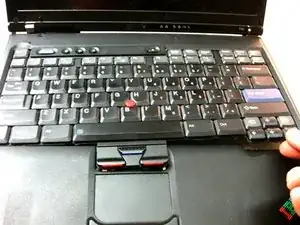
    • Flip the laptop over and open the screen.

    • The bezel and keyboard will be loose, be careful.

  4. GTJtY3mGQRbaQ12t
    GTJtY3mGQRbaQ12t
    wTbnWCPMvL2LQsAX
    • Carefully maneuver the palm rest away from the keyboard, as both the keyboard and palm rest/trackpad will come off together.

    • Remember, both the keyboard and trackpad have connectors to the motherboard. Disconnect these before completely removing either component.

  5. AxWR4wtYtxKaVLSD
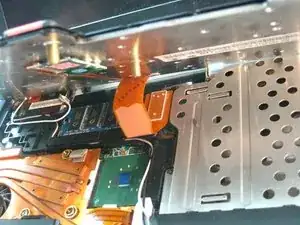
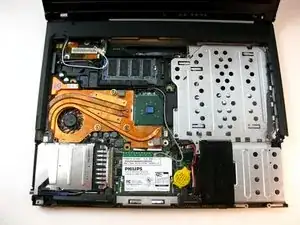
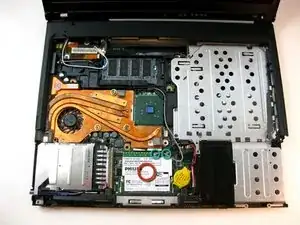
    • To remove Wi-Fi card, first disconnect both display wires on the top right.

  6. eJCJrreL16D1CUyN
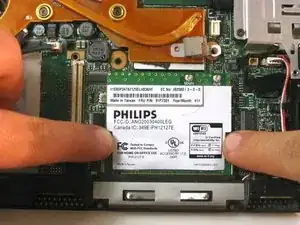
    • Then slide both of the metal pieces holding it down outwards, and it will pop up.

  7. xjd1bPLYk2fiqJ3L
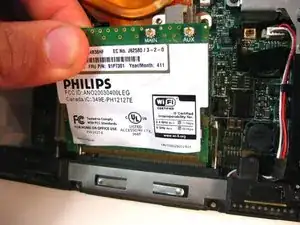
    • Carefully pull it out.

Abschluss

To reassemble your device, follow these instructions in reverse order.

Kevin Rehm

Mitglied seit: 19/04/10

394 Reputation

Ein Kommentar

Get the HMM for the laptop! On a few of these, I have had to just pull out the internal wi-fi card, and use a USB wi-fi adapter.

Martin Campbell -