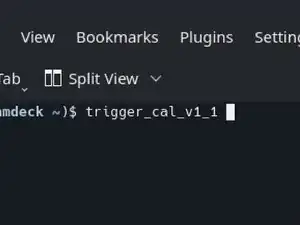
Einleitung
Use this guide to calibrate your Steam Deck's triggers from within SteamOS.
Valve recommends performing this software calibration after installing new triggers.
-
-
If you're not already in desktop mode, navigate to the Steam Menu → Power, and select Switch to Desktop.
-
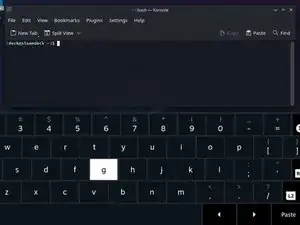
Press the Steam Button + X to enable the on-screen keyboard.
-
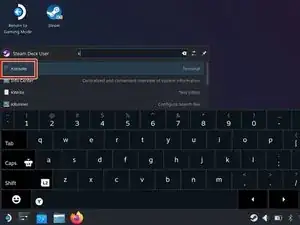
From the Search menu, search for and open Konsole.
-
-
-
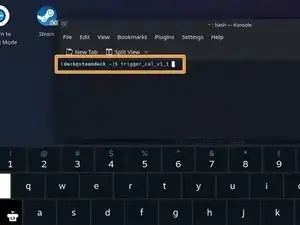
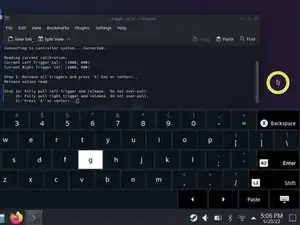
Ensure that neither trigger is depressed. Press Enter.
-
Tap on a blank desktop area to move the cursor off of the Konsole window. Make sure Konsole isn't in focus.
-
Gently press down each trigger until they bottom out.
-
Tap on the Konsole window to bring focus back to it. Press Enter.
-
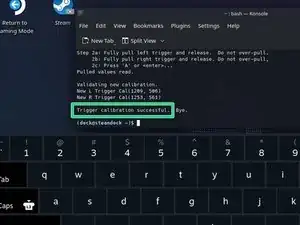
That's it! Your triggers are now calibrated. The terminal should say "Trigger calibration successful."
-
Click here to return to the left trigger replacement guide. Click here to return to the right trigger replacement guide.
Repair didn’t go as planned? Try some basic troubleshooting, or ask our Steam Deck answers community for help.