Einleitung
Are you trying to enhance your Dell Inspiron's graphics capabilities? Use this guide to replace your graphics card and let the visual splendor begin.


-
-
Place the desktop on its side. Make sure to place the computer on a soft but firm surface.
-
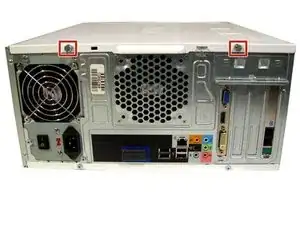
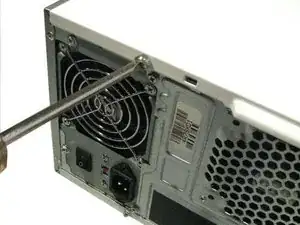
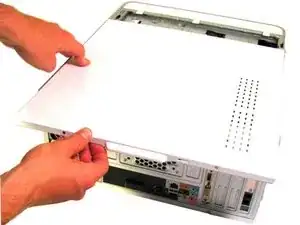
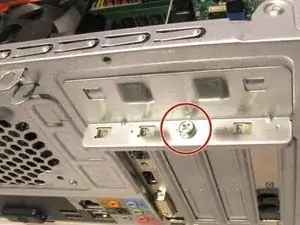
Locate and remove the two screws that secure the side panel to the desktop:
-
Two 1/4" Phillips/slotted combination screws.
-
-
-
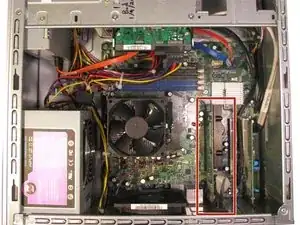
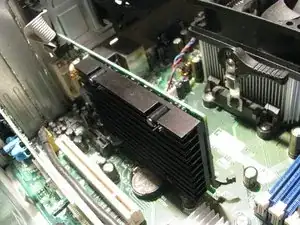
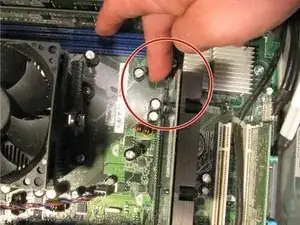
Locate the push tab that locks the graphics card into place.
-
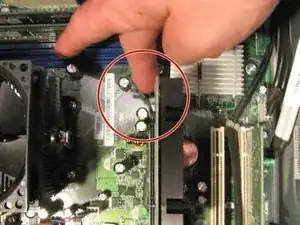
Push the tab away from the graphics card and towards the fan.
-
Hold the tab in this position through step 7.
-
-
-
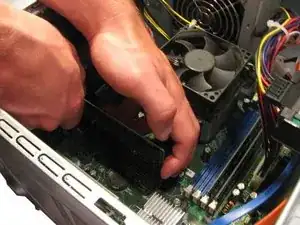
Keep the tab pushed away from the graphics card (see Step 6).
-
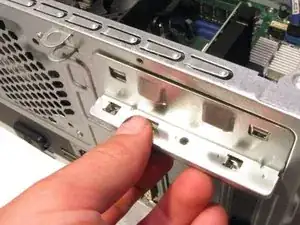
Gently lift the graphics card up and out of the desktop.
-
-
-
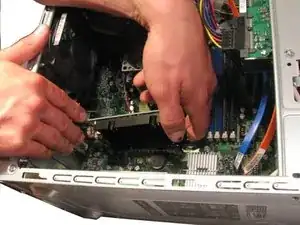
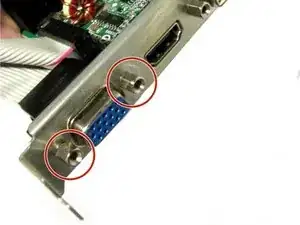
Remove the two screws holding the VGA ribbon cable to the bracket:
-
Two M3 hex standoff screws.
-
-
-
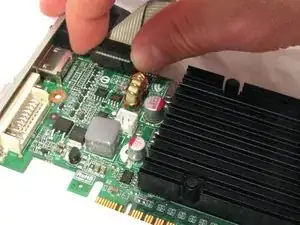
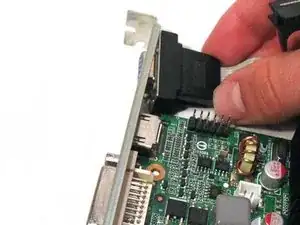
Gently unplug the ribbon cable from the header pins.
-
Remove the other end of the ribbon cable from the bracket.
-
-
-
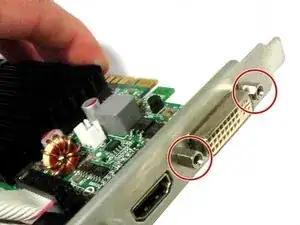
Remove the two screws holding the DVI adaptor to the bracket:
-
Two M3 hex standoff screws.
-
-
-
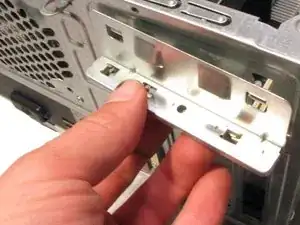
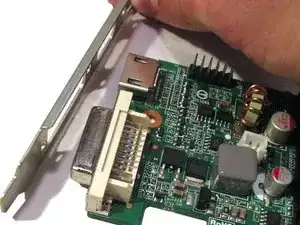
Remove the bracket from the graphics card.
-
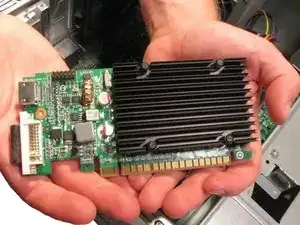
The job is done! You can now put the better graphics card in and bask in the joy of an enhanced visual experience.
-
To reassemble your device, follow these instructions in reverse order.