Einleitung
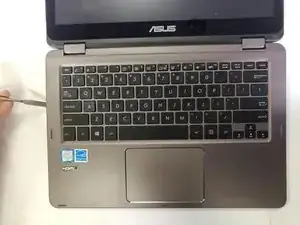
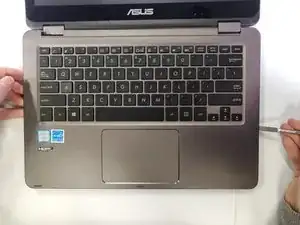
Before you replace your touch pad, make sure to plug an external mouse in. If you have never opened your laptop up, the back cover may not easily open.
Werkzeuge


-
-
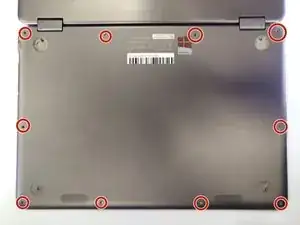
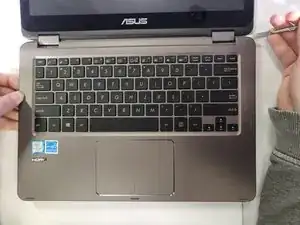
Unscrew the 10 5 mm #1 Phillips head screws in the corners of your laptop using the Phillips #1 screwdriver.
-
-
-
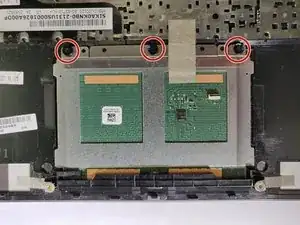
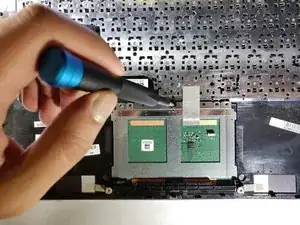
Unscrew the three 5 mm #1 Phillips screws on the touch pad with the Phillips #1 screwdriver.
-
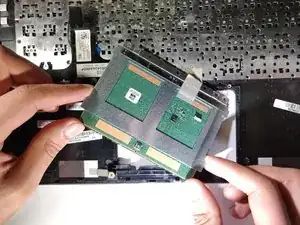
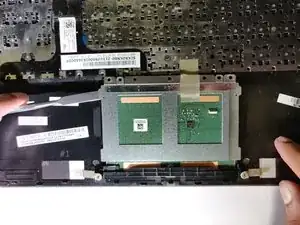
Lift touch pad with metal spudger.
-
To reassemble your device, follow these instructions in reverse order.

4 Kommentare
My zenbook wifi stopped working. The device manager did not recognize the wifi card. I opened the case and removed the wifi card and reinserted it. Wifi now works.
During this process the touchpad cable came loose. I opened the case again but I cant get the cable to stay in place. The tiny black clip at the cable connection does not secure the cable/ribbon. Any ideas?
Hello, I need to replace my trackpad on similar model UX362FA. I can’t find the spare part for it, any idea of a place where I could buy i ? Thanks.
BTW my problem with touchpad was the plastic protection layer that’s supposed to be removed. It doesn’t look like it can be removed but it is.
How often is it that a non functioning track pad is fixed with a hardware replacement such as this? What other causes might there be?